본문 바로가기
컴퓨터 활용(한글, 오피스 등)/기타

[podman] 도커를 대체할 podman 살펴보기

by 3604 2025. 7. 23.
728x90


지난 시간에 컨테이너 표준을 다루면서 docker와 podman을 다뤘습니다.

이번시간은 podman을 어떻게 사용할 수 있는지를 다뤄보고 도커와의 차별점을 다룹니다. 도커의 기능인 이미지 관리, 컨테이너 관리는 podman도 동일한 명령어 체계를 가집니다. podman에서 이미지, 컨테이너 관리는 가볍게 다루고 도커와의 차별점인 파드, 쿠버네티스와 조합, rest api 서버를 중점적으로 다루겠습니다.

  1. 이미지 관리
  2. 컨테이너 관리
  3. 파드
  4. 큐브(쿠버네티스)
  5. rest api 서버

사실 네트워크도 다뤄야 하는데 네트워크는 추후에 별도로 다루겠습니다.

※ podman 설치확인

version, info 명령어를 통해 버전정보 및 시스템 정보를 조회할 수 있습니다.

$ podman version Client: Podman Engine Version: 4.3.1 API Version: 4.3.1 Go Version: go1.19 Git Commit: 814b7b003cc630bf6ab188274706c383f9fb9915 Built: Thu Nov 10 23:26:55 2022 OS/Arch: darwin/amd64 Server: Podman Engine Version: 4.3.1 API Version: 4.3.1 Go Version: go1.19.2 Built: Sat Nov 12 00:01:27 2022 OS/Arch: linux/amd64
$ podman info host: arch: amd64 buildahVersion: 1.28.0 cgroupControllers: - cpu - io - memory - pids cgroupManager: systemd cgroupVersion: v2 conmon: package: conmon-2.1.5-1.fc37.x86_64 path: /usr/bin/conmon version: 'conmon version 2.1.5, commit: ' cpuUtilization: idlePercent: 99.81 systemPercent: 0.12 userPercent: 0.07 cpus: 1 distribution: distribution: fedora variant: coreos version: "37" eventLogger: journald hostname: localhost.localdomain idMappings: gidmap: - container_id: 0 host_id: 1000 size: 1 - container_id: 1 host_id: 100000 size: 1000000 uidmap: - container_id: 0 host_id: 501 size: 1 - container_id: 1 host_id: 100000 size: 1000000 kernel: 6.1.6-200.fc37.x86_64 linkmode: dynamic logDriver: journald memFree: 1713242112 memTotal: 2065825792 networkBackend: netavark ociRuntime: name: crun package: crun-1.7.2-3.fc37.x86_64 path: /usr/bin/crun version: |- crun version 1.7.2 commit: 0356bf4aff9a133d655dc13b1d9ac9424706cac4 rundir: /run/user/501/crun spec: 1.0.0 +SYSTEMD +SELINUX +APPARMOR +CAP +SECCOMP +EBPF +CRIU +LIBKRUN +WASM:wasmedge +YAJL os: linux remoteSocket: exists: true path: /run/user/501/podman/podman.sock security: apparmorEnabled: false capabilities: CAP_CHOWN,CAP_DAC_OVERRIDE,CAP_FOWNER,CAP_FSETID,CAP_KILL,CAP_NET_BIND_SERVICE,CAP_SETFCAP,CAP_SETGID,CAP_SETPCAP,CAP_SETUID,CAP_SYS_CHROOT rootless: true seccompEnabled: true seccompProfilePath: /usr/share/containers/seccomp.json selinuxEnabled: true serviceIsRemote: true slirp4netns: executable: /usr/bin/slirp4netns package: slirp4netns-1.2.0-8.fc37.x86_64 version: |- slirp4netns version 1.2.0 commit: 656041d45cfca7a4176f6b7eed9e4fe6c11e8383 libslirp: 4.7.0 SLIRP_CONFIG_VERSION_MAX: 4 libseccomp: 2.5.3 swapFree: 0 swapTotal: 0 uptime: 0h 41m 59.00s plugins: authorization: null log: - k8s-file - none - passthrough - journald network: - bridge - macvlan volume: - local registries: search: - docker.io store: configFile: /var/home/core/.config/containers/storage.conf containerStore: number: 0 paused: 0 running: 0 stopped: 0 graphDriverName: overlay graphOptions: {} graphRoot: /var/home/core/.local/share/containers/storage graphRootAllocated: 106769133568 graphRootUsed: 3663179776 graphStatus: Backing Filesystem: xfs Native Overlay Diff: "true" Supports d_type: "true" Using metacopy: "false" imageCopyTmpDir: /var/tmp imageStore: number: 1 runRoot: /run/user/501/containers volumePath: /var/home/core/.local/share/containers/storage/volumes version: APIVersion: 4.3.1 Built: 1668178887 BuiltTime: Sat Nov 12 00:01:27 2022 GitCommit: "" GoVersion: go1.19.2 Os: linux OsArch: linux/amd64 Version: 4.3.1

info 명령어는 시스템 정보 및 podman 버전정보를 확인할 수 있습니다.

※ 명령어 리스팅

Available Commands: attach Attach to a running container build Build an image using instructions from Containerfiles commit Create new image based on the changed container container Manage containers cp Copy files/folders between a container and the local filesystem create Create but do not start a container diff Display the changes to the object's file system events Show podman events exec Run a process in a running container export Export container's filesystem contents as a tar archive generate Generate structured data based on containers, pods or volumes healthcheck Manage health checks on containers help Help about any command history Show history of a specified image image Manage images images List images in local storage import Import a tarball to create a filesystem image info Display podman system information init Initialize one or more containers inspect Display the configuration of object denoted by ID kill Kill one or more running containers with a specific signal kube Play containers, pods or volumes from a structured file load Load image(s) from a tar archive login Login to a container registry logout Logout of a container registry logs Fetch the logs of one or more containers machine Manage a virtual machine manifest Manipulate manifest lists and image indexes network Manage networks pause Pause all the processes in one or more containers pod Manage pods port List port mappings or a specific mapping for the container ps List containers pull Pull an image from a registry push Push an image to a specified destination rename Rename an existing container restart Restart one or more containers rm Remove one or more containers rmi Removes one or more images from local storage run Run a command in a new container save Save image(s) to an archive search Search registry for image secret Manage secrets start Start one or more containers stats Display a live stream of container resource usage statistics stop Stop one or more containers system Manage podman tag Add an additional name to a local image top Display the running processes of a container unpause Unpause the processes in one or more containers untag Remove a name from a local image update update an existing container version Display the Podman version information volume Manage volumes wait Block on one or more containers

각 명령어에 따라 사용할 수 있는 옵션을 별도로 있습니다. 예를들어 pod 명령어의 옵션을 알고 싶다면 다음과 같이 확인할 수 있습니다.

$ podman pod --help Manage pods Description: Pods are a group of one or more containers sharing the same network, pid and ipc namespaces. Usage: podman pod [command] Available Commands: clone Clone an existing pod create Create a new empty pod exists Check if a pod exists in local storage inspect Displays a pod configuration kill Send the specified signal or SIGKILL to containers in pod logs Fetch logs for pod with one or more containers pause Pause one or more pods prune Remove all stopped pods and their containers ps List pods restart Restart one or more pods rm Remove one or more pods start Start one or more pods stats Display a live stream of resource usage statistics for the containers in one or more pods stop Stop one or more pods top Display the running processes of containers in a pod unpause Unpause one or more pods

팟맨은 머신의 개념이 있습니다.

● 머신

머신은 윈도우와 맥에서 가상의 리눅스 환경을 구성합니다.

$ cd ~/ $ podman machine init -v "$(pwd):$(pwd)" $ podman machine start $ podman machine stop

팟맨을 통해 관리되는 컨테이너는 가상의 리눅스 환경인 머신에서 실행되고 관리합니다.

$ podman machine init --cpus=4 --disk-size=60 --memory=6096

cpu, dist, memory의 제한을 조절할 수 있습니다.

podman machine --help Manage a virtual machine Description: Manage a virtual machine. Virtual machines are used to run Podman. Usage: podman machine [command] Available Commands: info Display machine host info init Initialize a virtual machine inspect Inspect an existing machine list List machines rm Remove an existing machine set Sets a virtual machine setting ssh SSH into an existing machine start Start an existing machine stop Stop an existing machine
$ podman machine inspect [ { "ConfigPath": { "Path": "/Users/jeongtaepark/.config/containers/podman/machine/qemu/podman-machine-default.json" }, "ConnectionInfo": { "PodmanSocket": { "Path": "/Users/jeongtaepark/.local/share/containers/podman/machine/podman-machine-default/podman.sock" } }, "Created": "2023-01-28T09:52:17.608927+09:00", "Image": { "IgnitionFilePath": { "Path": "/Users/jeongtaepark/.config/containers/podman/machine/qemu/podman-machine-default.ign" }, "ImageStream": "testing", "ImagePath": { "Path": "/Users/jeongtaepark/.local/share/containers/podman/machine/qemu/podman-machine-default_fedora-coreos-37.20230122.2.0-qemu.x86_64.qcow2" } }, "LastUp": "2023-01-28T09:52:17.608927+09:00", "Name": "podman-machine-default", "Resources": { "CPUs": 1, "DiskSize": 100, "Memory": 2048 }, "SSHConfig": { "IdentityPath": "/Users/jeongtaepark/.ssh/podman-machine-default", "Port": 61306, "RemoteUsername": "core" }, "State": "running" } ]

● 이미지 관리

이미지는 프로그램과 프로세스의 관계에서 프로그램 역할을 수행합니다.

· images - 이미지 목록

이미지 목록은 images를 이용하여 조회할 수 있습니다.

$ podman images REPOSITORY TAG IMAGE ID CREATED SIZE docker.io/library/mysql latest b939d379d46e 9 days ago 527 MB

· pull - 이미지를 받아오지

pull을 이용하여 원격 저장소에서 이미지를 받아올 수 있습니다.

$ podman pull ubuntu Resolved "ubuntu" as an alias (/etc/containers/registries.conf.d/000-shortnames.conf) Trying to pull docker.io/library/ubuntu:latest... Getting image source signatures Copying blob sha256:6e3729cf69e0ce2de9e779575a1fec8b7fb5efdfa822829290ab6d5d1bc3e797 Copying config sha256:6b7dfa7e8fdbe18ad425dd965a1049d984f31cf0ad57fa6d5377cca355e65f03 Writing manifest to image destination Storing signatures 6b7dfa7e8fdbe18ad425dd965a1049d984f31cf0ad57fa6d5377cca355e65f03 $ podman images REPOSITORY TAG IMAGE ID CREATED SIZE docker.io/library/mysql latest b939d379d46e 9 days ago 527 MB docker.io/library/ubuntu latest 6b7dfa7e8fdb 7 weeks ago 80.3 MB

도커도 그렇고 팟맨도 마찬가지로 컨테이너를 생성할 때 이미지가 없으면 pull을 수행하여 이미지를 다운받기 때문에 매번 pull을 할 필요는 없습니다.

· rmi - 이미지 삭제

rmi 명령어는 이미지를 삭제합니다. 단, 해당 이미지로 구동된 컨테이너가 없을 때 삭제를 진행합니다.

$ podman rmi 6b7dfa7e8fdb Untagged: docker.io/library/ubuntu:latest Deleted: 6b7dfa7e8fdbe18ad425dd965a1049d984f31cf0ad57fa6d5377cca355e65f03 $ podman images REPOSITORY TAG IMAGE ID CREATED SIZE docker.io/library/mysql latest b939d379d46e 9 days ago 527 MB

· build - Dockerfile으로 이미지 만들기

build 명령어를 통해 Dockerfile로 작성된 내용으로 이미지를 만들 수 있습니다.

먼저, Dockerfile을 작성합니다.

FROM ubuntu:latest RUN \ apt-get update && \ apt-get install -y apache2 EXPOSE 80 CMD ["apachectl", "-D", "FOREGROUND"]

build 명령어 체계는 다음과 같습니다.

$ podman build --help Build an image using instructions from Containerfiles Description: Builds an OCI or Docker image using instructions from one or more Containerfiles and a specified build context directory. Usage: podman build [options] [CONTEXT] Examples: podman build . podman build --creds=username:password -t imageName -f Containerfile.simple . podman build --layers --force-rm --tag imageName .
$ podman build -t [이미지 이름]:버전 [Dockerfile 경로]
$ podman build -t my-server .
$ podman images REPOSITORY TAG IMAGE ID CREATED SIZE localhost/my-server latest 1731f1f86426 About a minute ago 232 MB docker.io/library/mysql latest b939d379d46e 9 days ago 527 MB

my-server 이름을 가진 이미지를 생성했습니다. 해당 이미지는 아파치 웹 서버가 동작하는 ubuntu를 실행합니다.

버전을 명시하지 않으면 latest가 붙습니다.

● 컨테이너 관리

컨테이너는 이미지로 생성된 격리된 환경을 가진 프로세스 입니다.

· run - 컨테이너 생성 및 실행

$ podman run 이미지:태그
$ podman run ubuntu Resolved "ubuntu" as an alias (/etc/containers/registries.conf.d/000-shortnames.conf) Trying to pull docker.io/library/ubuntu:latest... Getting image source signatures Copying blob sha256:6e3729cf69e0ce2de9e779575a1fec8b7fb5efdfa822829290ab6d5d1bc3e797 Copying config sha256:6b7dfa7e8fdbe18ad425dd965a1049d984f31cf0ad57fa6d5377cca355e65f03 Writing manifest to image destination Storing signatures

run 명령어를 수행할 때 해당 이미지가 없으면 pull을 하여 이미지를 다운받습니다. ps는 컨테이너 목록을 조회합니다. -a 옵션을 주어 모든 상태의 컨테이너 목록을 조회할 수 있습니다.

$ podman ps -a CONTAINER ID IMAGE COMMAND CREATED STATUS PORTS NAMES f6b96ee1d550 docker.io/library/ubuntu:latest bash 7 seconds ago Exited (0) 8 seconds ago brave_mayer

status가 Exited가 의미하는 바는 동작중의 상태가 아닙니다.

컨테이너를 생성할 때 다양한 옵션을 추가할 수 있습니다.

-i -t 해당 컨테이너에 접속해서 명령어를 사용해야 된다면 옵션을 주어야 한다. -v 저장소 공유 -p 포트포워딩 --name 컨테이너 이름 -e 환경변수 설정 -d 백그라운드 실행

많이 사용하는 옵션이니, 잘 숙지해둡시다.

$ podman run -i -t --name test.container ubuntu:latest /bin/bash root@54f865076106:/#
 

ubuntu의 bin/bash를 실행합니다. 별도의 터미널을 띄우고 ps 명령어를 수행하면 다음과 같이 컨테이너 목록을 확인할 수 있습니다.

$ podman ps CONTAINER ID IMAGE COMMAND CREATED STATUS PORTS NAMES 54f865076106 docker.io/library/ubuntu:latest /bin/bash 40 seconds ago Up 41 seconds ago test.container

방금 생성한 컨테이너는 활성화(up 상태) 된 상태이기 때문에 -a 옵션을 주지 않더라도 확인할 수 있습니다.

팟맨 스럽게는 다음과 같이 명령어를 구성합니다.

$ podman container ls $ podman container ls -a $ podman container ls -qa $ podman container run

· start, restart, stop, rm - 컨테이너 시작, 재시작, 스톱, 삭제

$ podman stop [컨테이너 이름] # podman container stop [컨테이너 이름] $ podman stop test.container test.container $ podman ps -a # podman container ls -a CONTAINER ID IMAGE COMMAND CREATED STATUS PORTS NAMES f6b96ee1d550 docker.io/library/ubuntu:latest bash 5 minutes ago Exited (0) 5 minutes ago brave_mayer 54f865076106 docker.io/library/ubuntu:latest /bin/bash 2 minutes ago Exited (0) 6 seconds ago test.container

stop은 컨테이너를 중지합니다.

$ podman start [컨테이너 이름] # podman container start [컨테이너 이름] $ podman start test.container test.container $ podman ps # podman container ls CONTAINER ID IMAGE COMMAND CREATED STATUS PORTS NAMES 54f865076106 docker.io/library/ubuntu:latest /bin/bash 4 minutes ago Up 3 seconds ago test.container

start는 컨테이너를 실행합니다.

$ podman restart [컨테이너 이름] # podman container restart [컨테이너 이름] $ podman restart test.container test.container $ podman ps # podman container CONTAINER ID IMAGE COMMAND CREATED STATUS PORTS NAMES 54f865076106 docker.io/library/ubuntu:latest /bin/bash 4 minutes ago Up 7 seconds ago test.container

restart는 컨테이너를 다시 시작합니다.

$ podman rm [컨테이너 이름]

컨테이너를 지울 땐 rm 명령어를 사용합니다. 한 가지 주의할 점은 컨테이너를 제거할 땐 up상태이면 안됩니다.

podman rm test.container Error: cannot remove container 54f865076106ee0dc518240bce639557ebbf9d3d06d6f2941937ce6bc72575ec as it is running - running or paused containers cannot be removed without force: container state improper

stop으로 멈춘 후 rm으로 지워야 합니다.

$ podman stop test.container # podman container stop test.container test.container $ podman rm test.container # podman container rm test.container test.container $ podman ps -a # podman container ls -a CONTAINER ID IMAGE COMMAND CREATED STATUS PORTS NAMES f6b96ee1d550 docker.io/library/ubuntu:latest bash 10 minutes ago Exited (0) 10 minutes ago brave_mayer

· 옵션을 활용하여 컨테이너 생성 및 실행

앞에서 우리가 만든 이미지를 이용하여 웹 서버가 동작하는 컨테이너를 만들어보겠습니다.

$ podman run -i -t --name my.apache.server -d -p 8080:80 -e TEST_ENV=10 localhost/my-server f4483a94ea7a39c43a330cadca1532fb12a5e3306196eeb1b3b1a62bb35626cc $ podman ps CONTAINER ID IMAGE COMMAND CREATED STATUS PORTS NAMES f4483a94ea7a localhost/my-server:latest apachectl -D FORE... 4 seconds ago Up 5 seconds ago 0.0.0.0:8080->80/tcp my.apache.server

이제 localhost:8080으로 접속하면 컨테이너의 80포트로 포워딩 되어 아파치가 제공하는 서비스를 마음껏 누릴 수 있습니다 (마음껏이라고 해봤자 제공하는 서비스가 딱히 없습니다.).
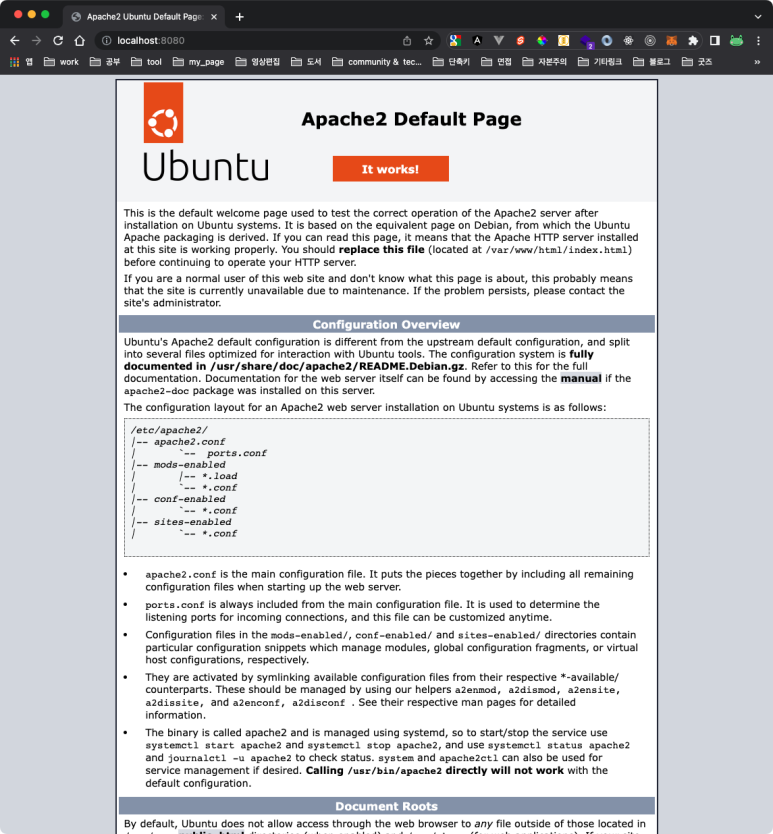
▶ 제공하는 페이지 수정하기

exec로 bash 실행하여 나만의 서비스를 제공하는 index.html을 추가하겠습니다.

$ podman exec -it my.apache.server /bin/bash # podman container exec -it my.apache.server root@f4483a94ea7a:/#

exec를 이용하여 방금 우리가 생성한 격리된 공간의 컨테이너의 bash를 실행합니다. 이제 여기서 사용하는 명령어는 host os(메인 운영체제)가 아닌 컨테이너 상에서 명령어를 수행합니다.

root@f4483a94ea7a:/# echo "hello mung world" > /var/www/html/index.html

멋진 사이트가 완성되었습니다.

▶ 볼륨 마운트

아 그런데 굳이 컨테이너의 bash를 실행하여 수정해야하는가?

당연히 더 편안 방법이 있습니다. 바로 볼륨 마운트를 이용하면 됩니다. 볼륨 마운트랑 호스트의 디렉터리를 컨테이너에 마운트하는 방법입니다. 마운트란 공유로 생각하면 됩니다.

다음과 같이 --volume 옵션을 추가합니다.

# podman container run -i -t --name my.apache.server -d -p 8080:80 -e TEST_ENV=10 --volume $PWD/html:/var/www/html/ localhost/my-server $ podman run -i -t --name my.apache.server -d -p 8080:80 -e TEST_ENV=10 --volume $PWD/html:/var/www/html/ localhost/my-server 1b9d6d13d2f3a68f9c1c5b6295745692bcd80b98e4e7d171aacdb3e67ab2cb4b

localhost:8080으로 접속하면 다음과 같이 보여집니다.

또한 호스트에 있는 index.html를 수정하면 컨테이너의 index.html로 변경되므로 바뀐 서비스를 경험할 수 있습니다.

호스트 경로의 index.html을 다음과 같이 수정합니다.

hello mung world hello mung world hello mung world hello mung world

이 외에도 cp를 이용하여 포스트 경로의 파일(디렉터리)를 컨테이너로 복사할 수 있습니다.

▶ 환경변수 확인하기

앞에서 컨테이너를 생성할 때 -e 옵션으로 TEST_ENV=10이라고 추가했는데 이는 컨테이너의 환경변수를 등록하는 과정입니다.

root@f4483a94ea7a:/# echo $TEST_ENV 10

· commit - 컨테이너를 이미지로 패키징

commit 명령어를 이용하여 컨테이너를 정적인 이미지로 패키징 할 수 있습니다.

$ podman commit [컨테이너 이름] [생성할 이미지 이름]:[이미지 버전] $ podman commit my.apache.server my-server:1.0 80d5397939e075ade6d3cc72a18768c01735ba04f49ee37c92df92ef96682772
$ podman images REPOSITORY TAG IMAGE ID CREATED SIZE localhost/my-server 1.0 80d5397939e0 4 seconds ago 232 MB localhost/my-server latest 06f11abce414 10 minutes ago 232 MB docker.io/library/ubuntu latest 6b7dfa7e8fdb 7 weeks ago 80.3 MB

1.0 이미지로 컨테이너를 생성해보겠습니다.

$ podman stop $(podman ps -aq) $ podman rm $(podman ps -aq)

앞의 두 명령어는 존재하는 모든 컨테이너를 멈추고 제거합니다.

다음으로 방금 우리가 새롭게 만든 이미지를 기반으로 컨테이너를 생성합니다.

$ podman run -i -t --name my.apache.server -d -p 8080:80 -e TEST_ENV=10 localhost/my-server:1.0 4e05e61001cc046fb1a9009788dc0097c032770dc936956bdd0ad5d8725140f2

● 파드(pod)

podman은 파드(pod) 개념이 있습니다. 파드(pod)는 컨테이너보다 상위개념 입니다. 하나의 파드(pod)는 다수의 컨테이너를 가질 수 있습니다. podman의 파드(pod)는 쿠버네티스(k8s)의 pod와 유사합니다.

$ podman pod --help Manage pods Description: Pods are a group of one or more containers sharing the same network, pid and ipc namespaces. Usage: podman pod [command] Available Commands: clone Clone an existing pod create Create a new empty pod exists Check if a pod exists in local storage inspect Displays a pod configuration kill Send the specified signal or SIGKILL to containers in pod logs Fetch logs for pod with one or more containers pause Pause one or more pods prune Remove all stopped pods and their containers ps List pods restart Restart one or more pods rm Remove one or more pods start Start one or more pods stats Display a live stream of resource usage statistics for the containers in one or more pods stop Stop one or more pods top Display the running processes of containers in a pod unpause Unpause one or more pods

· create - 파드 생성하기

$ podman pod create ce5e7f1377a58ce9004dd2c518db76b11da379395ab87abf2b9970478ac73eb7 $ podman pod list POD ID NAME STATUS CREATED INFRA ID # OF CONTAINERS ce5e7f1377a5 elegant_johnson Created 13 seconds ago c958a5c019ba 1

팟맨의 파드(pod)는 인프라 컨테이너(infra container)를 가집니다. INFRA ID가 바로 그것입니다. 인프라 컨테이너는 파드가 생성되는 순간 슬립(sleep)모드로 전환합니다. 파드(pod)는 격리된 ipc, net, pid namespace, cgroups을 가집니다. 즉, 팟맨은 우리가 원하면 별도의 격리된 공간을 만들 수 있습니다. 인프라 컨테이너는 파드에 다른 컨테이너를 연결하는 역할을 수행합니다.

파드에 포함된 컨테이너는 컨테이너 모니터(common)에게 감시를 받습니다. 감시받는 컨테이너가 죽으면 상태를 저장합니다. 그리고 tty를 열어두어 팟맨이 분리모드(백그라운드)로 실행될 때 팟맨은 종료되더라도 컨테이너 모니터는 실행되기 때문에 컨테이너는 계속 실행됩니다.

인프라 컨테이너도 컨테이너이기 때문에 컨테이너 조회시 다음과 같이 목록에 표시됩니다.

$ podman ps -a CONTAINER ID IMAGE COMMAND CREATED STATUS PORTS NAMES 4e05e61001cc localhost/my-server:1.0 apachectl -D FORE... 13 minutes ago Up 13 minutes ago 0.0.0.0:8080->80/tcp my.apache.server c958a5c019ba localhost/podman-pause:4.3.1-1668178887 7 minutes ago Created ce5e7f1377a5-infra

컨테이너 조회시 --pod 옵션을 추가하면 해당 컨테이너가 소속된 파드를 확인할 수 있습니다.

$ podman ps -a --pod CONTAINER ID IMAGE COMMAND CREATED STATUS PORTS NAMES POD ID PODNAME 4e05e61001cc localhost/my-server:1.0 apachectl -D FORE... 14 minutes ago Up 14 minutes ago 0.0.0.0:8080->80/tcp my.apache.server c958a5c019ba localhost/podman-pause:4.3.1-1668178887 8 minutes ago Created ce5e7f1377a5-infra ce5e7f1377a5 elegant_johnson

· 컨테이너 생성 시 파드에 넣기

run을 이용하여 컨테이너를 생성할 때 --pod 옵션을 이용하여 생성된 컨테이너를 파드(pod)에 연결할 수 있습니다.

$ podman run -i -t --name my.apache.server.1 -d -p 8081:80 --pod elegant_johnson localhost/my-server:1.0 Error: invalid config provided: published or exposed ports must be defined when the pod is created: network cannot be configured when it is shared with a pod

여기서 파드에 연결된 컨테이너는 해당 컨테이너에서 사용하는 리소스가 파드에 의해 관리됩니다.

앞의 에러는 포트 번호가 파드에 정의되어 있지 않기 때문에 해당 컨테이너를 파드에 연결할 수 없습니다. 하지만 파드는 설정을 바꿀 수 없습니다. 즉 8081:80을 바인딩하는 파드를 새롭게 만들어주어야 합니다.

▶ 파드 생성

$ podman pod create --name my.server.pod -p 8081:80 --share ipc,uts,net 6cb116ac6c33f136ab3bbd6248b2675b29336105f5a84cfd68429f57d09e1934 $ podman pod list POD ID NAME STATUS CREATED INFRA ID # OF CONTAINERS 6cb116ac6c33 my.server.pod Created 10 seconds ago a70d028cc92b 1 ce5e7f1377a5 elegant_johnson Created 23 minutes ago c958a5c019ba 1
$ podman pod inspect my.server.pod { "Id": "6cb116ac6c33f136ab3bbd6248b2675b29336105f5a84cfd68429f57d09e1934", "Name": "my.server.pod", "Created": "2023-01-28T10:43:38.768078887+09:00", "CreateCommand": [ "podman", "pod", "create", "--name", "my.server.pod", "-p", "8081:80", "--share", "ipc,uts,net" ], "ExitPolicy": "continue", "State": "Created", "Hostname": "", "CreateCgroup": true, "CgroupParent": "user.slice", "CgroupPath": "user.slice/user-libpod_pod_6cb116ac6c33f136ab3bbd6248b2675b29336105f5a84cfd68429f57d09e1934.slice", "CreateInfra": true, "InfraContainerID": "a70d028cc92bedd1a05272344acb56153a126e55740144c787b6486b8481638e", "InfraConfig": { "PortBindings": { "80/tcp": [ { "HostIp": "", "HostPort": "8081" } ] }, "HostNetwork": false, "StaticIP": "", "StaticMAC": "", "NoManageResolvConf": false, "DNSServer": null, "DNSSearch": null, "DNSOption": null, "NoManageHosts": false, "HostAdd": null, "Networks": [ "podman" ], "NetworkOptions": null, "pid_ns": "private", "userns": "host", "uts_ns": "private" }, "SharedNamespaces": [ "ipc", "net", "uts" ], "NumContainers": 1, "Containers": [ { "Id": "a70d028cc92bedd1a05272344acb56153a126e55740144c787b6486b8481638e", "Name": "6cb116ac6c33-infra", "State": "created" } ] }

state가 create이기 때문에 running 상태로 바꿔주기 위해 start 명령을 수행합니다.

$ podman pod start my.server.pod c39b6c74c5560a7bd57507d815d4034b68403a71d65c1d4e83b2f942d1d8ff2d

▶ 컨테이너 생성

--pod에 new:파드이름 형태로 전달하면 새로운 파드(pod)를 만들고 새롭게 생성된 파드에 생성된 컨테이너를 넣습니다. new:가 없다면 기존에 존재하는 파드에 해당 컨테이너를 연결합니다.

$ podman run -i -t --name my.apache.server.1 --pod=new:my.server.pod.1 -d -p 0.0.0.0:8081:80 localhost/my-server:1.0 74d3c57618ea49201320217e61c8d28a68d623b7ad7e986868f7b8b20d6b839f
$ podman pod ls POD ID NAME STATUS CREATED INFRA ID # OF CONTAINERS f44fe565be06 my.server.pod.1 Degraded 3 minutes ago 26e07da9c37a 2 6cb116ac6c33 my.server.pod Created 5 minutes ago a70d028cc92b 1 ce5e7f1377a5 elegant_johnson Created 29 minutes ago c958a5c019ba 1
# 이미 존재하는 파드에 컨테이너 연결 $ podman run -i -t --name my.apache.server.2 --pod=my.server.pod.1 -d localhost/my-server:1.0 d243dafb861019aec307b2e192c78ee44409c91c3c76cd6dab9b316204fd154b $ podman pod ls POD ID NAME STATUS CREATED INFRA ID # OF CONTAINERS f44fe565be06 my.server.pod.1 Degraded 3 minutes ago 26e07da9c37a 3 6cb116ac6c33 my.server.pod Created 5 minutes ago a70d028cc92b 1 ce5e7f1377a5 elegant_johnson Created 29 minutes ago c958a5c019ba 1

이미 존재하는 파드에 연결할 땐 해당 컨테이너가 외부로부터 요청을 받기위해 포트를 바인딩할 필요가 없습니다. 파드가 대신 수행합니다. 파드에 포트가 바인딩 되어 있기 때문에 컨테이너에선 별도의 리소스를 바인딩하지 않습니다.

· 파드제거

파드 제거시 파드에 인프라 컨테이너 이외의 컨테이너가 연결되어 있다면 삭제할 수 없습니다.

$ podman pod rm my.server.pod.1 Error: 2 errors occurred: * removing container 74d3c57618ea49201320217e61c8d28a68d623b7ad7e986868f7b8b20d6b839f from pod f44fe565be06f9de1a57bb34a69bd3d51f8d8482e37a0c213bae03aa857fca08: cannot remove container 74d3c57618ea49201320217e61c8d28a68d623b7ad7e986868f7b8b20d6b839f as it is running - running or paused containers cannot be removed without force: container state improper * removing container 26e07da9c37a8823e96d86e14796049e0c297a24f8872eca14142598f842d288 from pod f44fe565be06f9de1a57bb34a69bd3d51f8d8482e37a0c213bae03aa857fca08: a container that depends on container 26e07da9c37a8823e96d86e14796049e0c297a24f8872eca14142598f842d288 could not be removed: container state improper

또한 인프라 컨테이너는 podman rm [인프라 컨테이너 이름]으로 지울 수 없습니다.

$ podman rm $(podman ps -aq) 74d3c57618ea Error: container c958a5c019bae1a1f0f8eddeff358eedce0359a914f0ed3cdcd098019ee71c31 is the infra container of pod ce5e7f1377a58ce9004dd2c518db76b11da379395ab87abf2b9970478ac73eb7 and cannot be removed without removing the pod Error: container 26e07da9c37a8823e96d86e14796049e0c297a24f8872eca14142598f842d288 is the infra container of pod f44fe565be06f9de1a57bb34a69bd3d51f8d8482e37a0c213bae03aa857fca08 and cannot be removed without removing the pod Error: container b71a536bbe0eeebde57257f59bde9f4dbc8c36969904a3ba3bd6c1316bc269aa is the infra container of pod c39b6c74c5560a7bd57507d815d4034b68403a71d65c1d4e83b2f942d1d8ff2d and cannot be removed without removing the pod

인프라 컨테이너는 파드를 지울 때 함께 제거됩니다.

$  podman pod rm my.server.pod c39b6c74c5560a7bd57507d815d4034b68403a71d65c1d4e83b2f942d1d8ff2d $ podman pod rm my.server.pod.1 f44fe565be06f9de1a57bb34a69bd3d51f8d8482e37a0c213bae03aa857fca08 $ podman pod rm elegant_johnson ce5e7f1377a58ce9004dd2c518db76b11da379395ab87abf2b9970478ac73eb7
$ podman pod ls POD ID NAME STATUS CREATED INFRA ID # OF CONTAINERS $ podman ps -a CONTAINER ID IMAGE COMMAND CREATED STATUS PORTS NAMES

● 큐브(쿠버네티스)

팟맨은 kube 명령어를 통해 쿠버네티스의 파드를 생성할 수 있습니다.

 
$ podman kube --help Play containers, pods or volumes from a structured file Description: Play structured data (e.g., Kubernetes YAML) based on containers, pods or volumes. Usage: podman kube [command] Available Commands: down Remove pods based on Kubernetes YAML. generate Generate Kubernetes YAML from containers, pods or volumes. play Play a pod or volume based on Kubernetes YAML.

· play

쿠버네티스 yaml 파일을 기반으로 적절히 파드를 생성합니다.

pod.yaml

apiVersion: v1 kind: Pod metadata: annotations: io.kubernetes.cri-o.TTY/my.apache.server.2: "true" io.podman.annotations.autoremove/my.apache.server.2: "FALSE" io.podman.annotations.init/my.apache.server.2: "FALSE" io.podman.annotations.privileged/my.apache.server.2: "FALSE" io.podman.annotations.publish-all/my.apache.server.2: "FALSE" org.opencontainers.image.base.digest/my.apache.server.2: sha256:dc9946a7bfc2aa394cc954f44c026b178f0e4b80281c191931ed6f01 org.opencontainers.image.base.name/my.apache.server.2: docker.io/library/ubuntu:latest creationTimestamp: "2023-01-28T02:13:03Z" labels: app: my.apache.server.3-pod name: my.apache.server.3-pod spec: automountServiceAccountToken: false containers: - image: localhost/my-server:1.0 name: my.apache.server.4 ports: - containerPort: 80 hostPort: 8085 securityContext: capabilities: drop: - CAP_MKNOD - CAP_NET_RAW - CAP_AUDIT_WRITE stdin: true tty: true enableServiceLinks: false
$ podman kube play pod.yaml Pod: d9c31b4d782b1c5020797475c4ef3670c62ef329feb23509ca3a98c388114f53 Container: fa886ad739c000d695108757fb027366b15519fa27e134827c6395c8c8a2b706

파드와 컨테이너를 생성합니다.

$ podman pod ls POD ID NAME STATUS CREATED INFRA ID # OF CONTAINERS d9c31b4d782b my.apache.server.3-pod Running 52 seconds ago 2041c1226ee7 2 $ podman ps -a --pod CONTAINER ID IMAGE COMMAND CREATED STATUS PORTS NAMES POD ID PODNAME 2041c1226ee7 localhost/podman-pause:4.3.1-1668178887 About a minute ago Up About a minute ago 0.0.0.0:8085->80/tcp d9c31b4d782b-infra d9c31b4d782b my.apache.server.3-pod fa886ad739c0 localhost/my-server:1.0 apachectl -D FORE... About a minute ago Up About a minute ago 0.0.0.0:8085->80/tcp my.apache.server.3-pod-my.apache.server.4 d9c31b4d782b my.apache.server.3-pod

· generate

generate는 팟맨에서 생성된 파드를 쿠버네티스에서 파드로 생성할 수 있도록 pod 파일을 만들어줍니다.

$ podman run -dti --name my.apache.server.2 -p 8082:80 localhost/my-server:1.0
$ podman kube generate my.apache.server.2 # Save the output of this file and use kubectl create -f to import # it into Kubernetes. # # Created with podman-4.3.1 apiVersion: v1 kind: Pod metadata: annotations: io.kubernetes.cri-o.TTY/my.apache.server.2: "true" io.podman.annotations.autoremove/my.apache.server.2: "FALSE" io.podman.annotations.init/my.apache.server.2: "FALSE" io.podman.annotations.privileged/my.apache.server.2: "FALSE" io.podman.annotations.publish-all/my.apache.server.2: "FALSE" org.opencontainers.image.base.digest/my.apache.server.2: sha256:dc9946a7bfc2aa394cc954f44c026b178f0e4b80281c191931ed6f01 org.opencontainers.image.base.name/my.apache.server.2: docker.io/library/ubuntu:latest creationTimestamp: "2023-01-28T02:13:03Z" labels: app: my.apache.server.2-pod name: my.apache.server.2-pod spec: automountServiceAccountToken: false containers: - image: localhost/my-server:1.0 name: my.apache.server.2 ports: - containerPort: 80 hostPort: 8082 securityContext: capabilities: drop: - CAP_MKNOD - CAP_NET_RAW - CAP_AUDIT_WRITE stdin: true tty: true enableServiceLinks: false

· down

down은 play로 생성된 파드를 지웁니다.

$ podman kube down pod.yaml Pods stopped: d9c31b4d782b1c5020797475c4ef3670c62ef329feb23509ca3a98c388114f53 Pods removed: d9c31b4d782b1c5020797475c4ef3670c62ef329feb23509ca3a98c388114f53
$ podman ps -a --pod CONTAINER ID IMAGE COMMAND CREATED STATUS PORTS NAMES POD ID PODNAME $ podman pod ls POD ID NAME STATUS CREATED INFRA ID # OF CONTAINERS

● rest api

팟맨은 rest api를 지원합니다.

https://docs.podman.io/en/latest/_static/api.html

사용가능한 API를 공식문서를 통해 확인할 수 있습니다.

· 서버구동

앞에서 팟맨을 위해 리눅스 가상환경을 ssh로 접속합니다.

$ podman machine ssh Connecting to vm podman-machine-default. To close connection, use `~.` or `exit` Fedora CoreOS 37.20230122.2.0 Tracker: https://github.com/coreos/fedora-coreos-tracker Discuss: https://discussion.fedoraproject.org/tag/coreos [core@localhost ~]$

여기서 팟맨 서버를 띄워줍니다.

[core@localhost ~]$ podman system service tcp:localhost:9000 --time 0 &

[core@localhost ~]$ curl http://127.0.0.1:9000/v4.3.1/libpod/info | jq { "host": { "arch": "amd64", "buildahVersion": "1.28.0", "cgroupManager": "systemd", "cgroupVersion": "v2", "cgroupControllers": [ "cpu", "io", "memory", "pids" ], "conmon": { "package": "conmon-2.1.5-1.fc37.x86_64", "path": "/usr/bin/conmon", "version": "conmon version 2.1.5, commit: " }, "cpus": 1, "cpuUtilization": { "userPercent": 0.44, "systemPercent": 0.74, "idlePercent": 98.82 }, "distribution": { "distribution": "fedora", "variant": "coreos", "version": "37" }, "eventLogger": "journald", "hostname": "localhost.localdomain", "idMappings": { "gidmap": [ { "container_id": 0, "host_id": 1000, "size": 1 }, { "container_id": 1, "host_id": 100000, "size": 1000000 } ], "uidmap": [ { "container_id": 0, "host_id": 501, "size": 1 }, { "container_id": 1, "host_id": 100000, "size": 1000000 } ] }, "kernel": "6.1.6-200.fc37.x86_64", "logDriver": "journald", "memFree": 981553152, "memTotal": 2065825792, "networkBackend": "netavark", "ociRuntime": { "name": "crun", "package": "crun-1.7.2-3.fc37.x86_64", "path": "/usr/bin/crun", "version": "crun version 1.7.2\ncommit: 0356bf4aff9a133d655dc13b1d9ac9424706cac4\nrundir: /run/user/501/crun\nspec: 1.0.0\n+SYSTEMD +SELINUX +APPARMOR +CAP +SECCOMP +EBPF +CRIU +LIBKRUN +WASM:wasmedge +YAJL" }, "os": "linux", "remoteSocket": { "path": "tcp:localhost:9000", "exists": true }, "serviceIsRemote": false, "security": { "apparmorEnabled": false, "capabilities": "CAP_CHOWN,CAP_DAC_OVERRIDE,CAP_FOWNER,CAP_FSETID,CAP_KILL,CAP_NET_BIND_SERVICE,CAP_SETFCAP,CAP_SETGID,CAP_SETPCAP,CAP_SETUID,CAP_SYS_CHROOT", "rootless": true, "seccompEnabled": true, "seccompProfilePath": "/usr/share/containers/seccomp.json", "selinuxEnabled": true }, "slirp4netns": { "executable": "/usr/bin/slirp4netns", "package": "slirp4netns-1.2.0-8.fc37.x86_64", "version": "slirp4netns version 1.2.0\ncommit: 656041d45cfca7a4176f6b7eed9e4fe6c11e8383\nlibslirp: 4.7.0\nSLIRP_CONFIG_VERSION_MAX: 4\nlibseccomp: 2.5.3" }, "swapFree": 0, "swapTotal": 0, "uptime": "2h 10m 38.00s (Approximately 0.08 days)", "linkmode": "dynamic" }, "store": { "configFile": "/var/home/core/.config/containers/storage.conf", "containerStore": { "number": 4, "paused": 0, "running": 1, "stopped": 3 }, "graphDriverName": "overlay", "graphOptions": {}, "graphRoot": "/var/home/core/.local/share/containers/storage", "graphRootAllocated": 106769133568, "graphRootUsed": 2518597632, "graphStatus": { "Backing Filesystem": "xfs", "Native Overlay Diff": "true", "Supports d_type": "true", "Using metacopy": "false" }, "imageCopyTmpDir": "/var/tmp", "imageStore": { "number": 6 }, "runRoot": "/run/user/501/containers", "volumePath": "/var/home/core/.local/share/containers/storage/volumes" }, "registries": { "search": [ "docker.io" ] }, "plugins": { "volume": [ "local" ], "network": [ "bridge", "macvlan" ], "log": [ "k8s-file", "none", "passthrough", "journald" ], "authorization": null }, "version": { "APIVersion": "4.3.1", "Version": "4.3.1", "GoVersion": "go1.19.2", "GitCommit": "", "BuiltTime": "Sat Nov 12 00:01:27 2022", "Built": 1668178887, "OsArch": "linux/amd64", "Os": "linux" } }

▶ 컨테이너 상태 조회

[core@localhost ~]$ curl http://127.0.0.1:9000/v4.3.1/libpod/containers/stats | jq { "Error": null, "Stats": [ { "AvgCPU": 0, "ContainerID": "3082b8ea983819f410253d8858da2093cdb1ae23e299228730236ed96dff7501", "Name": "76170c7d1ccf-infra", "PerCPU": null, "CPU": 0, "CPUNano": 0, "CPUSystemNano": 0, "SystemNano": 0, "MemUsage": 0, "MemLimit": 0, "MemPerc": 0, "NetInput": 0, "NetOutput": 0, "BlockInput": 0, "BlockOutput": 0, "PIDs": 0, "UpTime": 0, "Duration": 0 }, { "AvgCPU": 0, "ContainerID": "8485994272f8f43ef6b5a889616d7ffc0ea1a5e180825719590ef709663784b7", "Name": "my.apache.server", "PerCPU": null, "CPU": 0, "CPUNano": 0, "CPUSystemNano": 0, "SystemNano": 0, "MemUsage": 0, "MemLimit": 0, "MemPerc": 0, "NetInput": 0, "NetOutput": 0, "BlockInput": 0, "BlockOutput": 0, "PIDs": 0, "UpTime": 0, "Duration": 0 }, { "AvgCPU": 0, "ContainerID": "8e877eeec8981b43f1d292d961346ffbc2b60e5921e4394f44432c6db7e4c855", "Name": "34291c055985-infra", "PerCPU": null, "CPU": 0, "CPUNano": 0, "CPUSystemNano": 0, "SystemNano": 0, "MemUsage": 0, "MemLimit": 0, "MemPerc": 0, "NetInput": 0, "NetOutput": 0, "BlockInput": 0, "BlockOutput": 0, "PIDs": 0, "UpTime": 0, "Duration": 0 }, { "AvgCPU": 0.00012902783770580043, "ContainerID": "a1f7c72ecac35496448a0b76f5712254334680fc5b3f0104d1e32450d995714c", "Name": "996019c5bf1c-infra", "PerCPU": null, "CPU": 0, "CPUNano": 5378000, "CPUSystemNano": 5378, "SystemNano": 1674875335315238820, "MemUsage": 53248, "MemLimit": 2065825792, "MemPerc": 0.0025775648753251696, "NetInput": 1146, "NetOutput": 3502, "BlockInput": 0, "BlockOutput": 0, "PIDs": 1, "UpTime": 5378000, "Duration": 5378000 } ] }

▶ 이미지 조회

[core@localhost ~]$ curl http://127.0.0.1:9000/v4.3.1/images/json | jq % Total % Received % Xferd Average Speed Time Time Time Current Dload Upload Total Spent Left Speed 100 2421 0 2421 0 0 55260 0 --:--:-- --:--:-- --:--:-- 56302 [ { "Id": "sha256:6b7dfa7e8fdbe18ad425dd965a1049d984f31cf0ad57fa6d5377cca355e65f03", "ParentId": "", "RepoTags": [ "docker.io/library/ubuntu:latest" ], "RepoDigests": [ "docker.io/library/ubuntu@sha256:27cb6e6ccef575a4698b66f5de06c7ecd61589132d5a91d098f7f3f9285415a9", "docker.io/library/ubuntu@sha256:965fbcae990b0467ed5657caceaec165018ef44a4d2d46c7cdea80a9dff0d1ea" ], "Created": 1670548831, "Size": 80322401, "SharedSize": 0, "VirtualSize": 80322401, "Labels": null, "Containers": 0, "Names": [ "docker.io/library/ubuntu:latest" ], "Digest": "sha256:27cb6e6ccef575a4698b66f5de06c7ecd61589132d5a91d098f7f3f9285415a9", "History": [ "docker.io/library/ubuntu:latest" ] }, { "Id": "sha256:06f11abce414eecdfe442d19e03bbd9f14c535bdb9ccc917ed2b0cd3937bcd0d", "ParentId": "b09440b7195ae73f4ddd8b7599ed952c5aa19bce917c85376f359bedf8063c3e", "RepoTags": [ "localhost/my-server:latest" ], "RepoDigests": [ "localhost/my-server@sha256:83fdd1c1dfdd20fb7412aa663a4ad647c89d2552cbc160cffc90becad13f9771" ], "Created": 1674867713, "Size": 231753919, "SharedSize": 0, "VirtualSize": 231753919, "Labels": { "io.buildah.version": "1.28.0" }, "Containers": 0, "Names": [ "localhost/my-server:latest" ], "Digest": "sha256:83fdd1c1dfdd20fb7412aa663a4ad647c89d2552cbc160cffc90becad13f9771", "History": [ "localhost/my-server:latest" ] }, { "Id": "sha256:80d5397939e075ade6d3cc72a18768c01735ba04f49ee37c92df92ef96682772", "ParentId": "06f11abce414eecdfe442d19e03bbd9f14c535bdb9ccc917ed2b0cd3937bcd0d", "RepoTags": [ "localhost/my-server:1.0" ], "RepoDigests": [ "localhost/my-server@sha256:a7b3b5dfe88a23a68b60dee0ec9f00a1e173208fd906233a67802b495cfba4fc" ], "Created": 1674868331, "Size": 231774438, "SharedSize": 0, "VirtualSize": 231774438, "Labels": { "io.buildah.version": "1.28.0" }, "Containers": 1, "Names": [ "localhost/my-server:1.0" ], "Digest": "sha256:a7b3b5dfe88a23a68b60dee0ec9f00a1e173208fd906233a67802b495cfba4fc", "History": [ "localhost/my-server:1.0" ] }, { "Id": "sha256:e463a3a691ee334ed6ef6f7d65e8b33a3cc066fec18176c7545b37873d3d0ff6", "ParentId": "", "RepoTags": [ "localhost/podman-pause:4.3.1-1668178887" ], "RepoDigests": [ "localhost/podman-pause@sha256:d14cf1d2c407bf0811b20b673f3244e177d4c294745ebc4b72e9ff89298c2b0a" ], "Created": 1674868818, "Size": 1092736, "SharedSize": 0, "VirtualSize": 1092736, "Labels": { "io.buildah.version": "1.28.0" }, "Containers": 3, "Names": [ "localhost/podman-pause:4.3.1-1668178887" ], "Digest": "sha256:d14cf1d2c407bf0811b20b673f3244e177d4c294745ebc4b72e9ff89298c2b0a", "History": [ "localhost/podman-pause:4.3.1-1668178887" ] } ]

· podman.socket

만약 소켓으로 서버를 열려면 tcp:허용 아이피:포트를 지우고 실행합니다

[core@localhost ~]$ podman system service --time=0 & [1] 9479

socket 경로는 machine inspect에서 알 수 있습니다.

$ podman machine inspect [ { "ConfigPath": { "Path": "/Users/jeongtaepark/.config/containers/podman/machine/qemu/podman-machine-default.json" }, "ConnectionInfo": { "PodmanSocket": { "Path": "/Users/jeongtaepark/.local/share/containers/podman/machine/podman-machine-default/podman.sock" } }, "Created": "2023-01-28T09:52:17.608927+09:00", "Image": { "IgnitionFilePath": { "Path": "/Users/jeongtaepark/.config/containers/podman/machine/qemu/podman-machine-default.ign" }, "ImageStream": "testing", "ImagePath": { "Path": "/Users/jeongtaepark/.local/share/containers/podman/machine/qemu/podman-machine-default_fedora-coreos-37.20230122.2.0-qemu.x86_64.qcow2" } }, "LastUp": "2023-01-28T09:52:17.608927+09:00", "Name": "podman-machine-default", "Resources": { "CPUs": 1, "DiskSize": 100, "Memory": 2048 }, "SSHConfig": { "IdentityPath": "/Users/jeongtaepark/.ssh/podman-machine-default", "Port": 61306, "RemoteUsername": "core" }, "State": "running" } ]

ConnectionInfo.PodmanSocket.Path 입니다. 해당 URL이 호스트에서 podman이 실행중인 가상 리눅스 서버와 통신할 수 있는 소켓입니다.

$ curl -s --unix-socket /Users/jeongtaepark/.local/share/containers/podman/machine/podman-machine-default/podman.sock http://d/v4.3.2/libpod/version {"Platform":{"Name":"linux/amd64/fedora-37"},"Components":[{"Name":"Podman Engine","Version":"4.3.1","Details":{"APIVersion":"4.3.1","Arch":"amd64","BuildTime":"2022-11-12T00:01:27+09:00","Experimental":"false","GitCommit":"","GoVersion":"go1.19.2","KernelVersion":"6.1.6-200.fc37.x86_64","MinAPIVersion":"4.0.0","Os":"linux"}},{"Name":"Conmon","Version":"conmon version 2.1.5, commit: ","Details":{"Package":"conmon-2.1.5-1.fc37.x86_64"}},{"Name":"OCI Runtime (crun)","Version":"crun version 1.7.2\ncommit: 0356bf4aff9a133d655dc13b1d9ac9424706cac4\nrundir: /run/user/501/crun\nspec: 1.0.0\n+SYSTEMD +SELINUX +APPARMOR +CAP +SECCOMP +EBPF +CRIU +LIBKRUN +WASM:wasmedge +YAJL","Details":{"Package":"crun-1.7.2-3.fc37.x86_64"}}],"Version":"4.3.1","ApiVersion":"1.41","MinAPIVersion":"1.24","GitCommit":"","GoVersion":"go1.19.2","Os":"linux","Arch":"amd64","KernelVersion":"6.1.6-200.fc37.x86_64","BuildTime":"2022-11-12T00:01:27+09:00"}

해당 소켓 path로 요청하면 가상 리눅스 서버의 소켓으로 바인딩 됩니다. 가상 리눅스 서버에서 관리되는 소켓은 podman system으로 확인할 수 있습니다.

$ podman system connection list Name URI Identity Default podman-machine-default ssh://core@localhost:61306/run/user/501/podman/podman.sock /Users/jeongtaepark/.ssh/podman-machine-default true podman-machine-default-root ssh://root@localhost:61306/run/podman/podman.sock /Users/jeongtaepark/.ssh/podman-machine-default false

만약, 가상 리눅스에서 요청하려면 system connection list로 나온 경로로 요청하면 됩니다.

[core@localhost ~]$ curl -s --unix-socket /run/user/501/podman/podman.sock http://d/v4.3.2/libpod/version {"Platform":{"Name":"linux/amd64/fedora-37"},"Components":[{"Name":"Podman Engine","Version":"4.3.1","Details":{"APIVersion":"4.3.1","Arch":"amd64","BuildTime":"2022-11-12T00:01:27+09:00","Experimental":"false","GitCommit":"","GoVersion":"go1.19.2","KernelVersion":"6.1.6-200.fc37.x86_64","MinAPIVersion":"4.0.0","Os":"linux"}},{"Name":"Conmon","Version":"conmon version 2.1.5, commit: ","Details":{"Package":"conmon-2.1.5-1.fc37.x86_64"}},{"Name":"OCI Runtime (crun)","Version":"crun version 1.7.2\ncommit: 0356bf4aff9a133d655dc13b1d9ac9424706cac4\nrundir: /run/user/501/crun\nspec: 1.0.0\n+SYSTEMD +SELINUX +APPARMOR +CAP +SECCOMP +EBPF +CRIU +LIBKRUN +WASM:wasmedge +YAJL","Details":{"Package":"crun-1.7.2-3.fc37.x86_64"}}],"Version":"4.3.1","ApiVersion":"1.41","MinAPIVersion":"1.24","GitCommit":"","GoVersion":"go1.19.2","Os":"linux","Arch":"amd64","KernelVersion":"6.1.6-200.fc37.x86_64","BuildTime":"2022-11-12T00:01:27+09:00"}

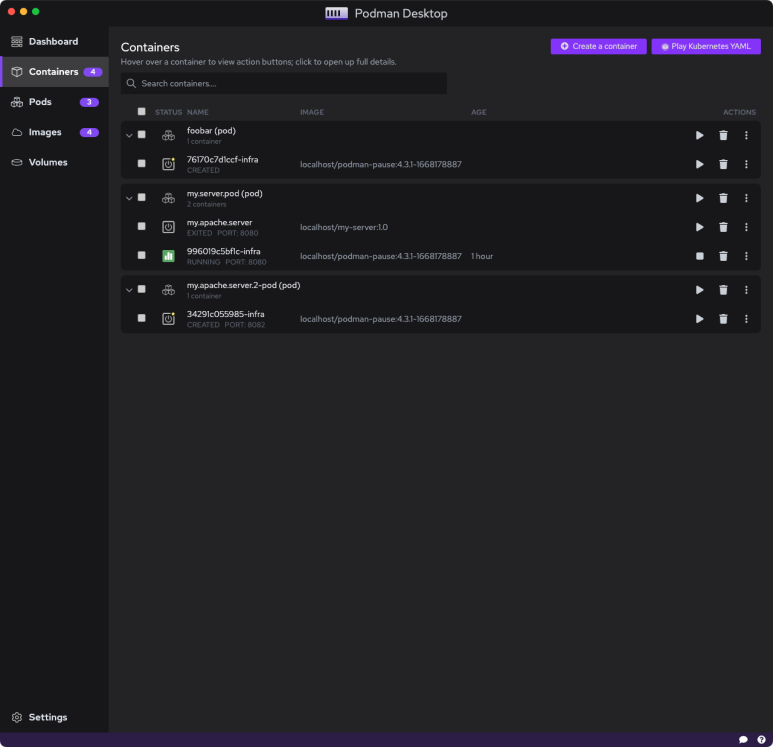
이걸 이용하면 나만의 podman-desktop을 만들 수 있습니다.


728x90